
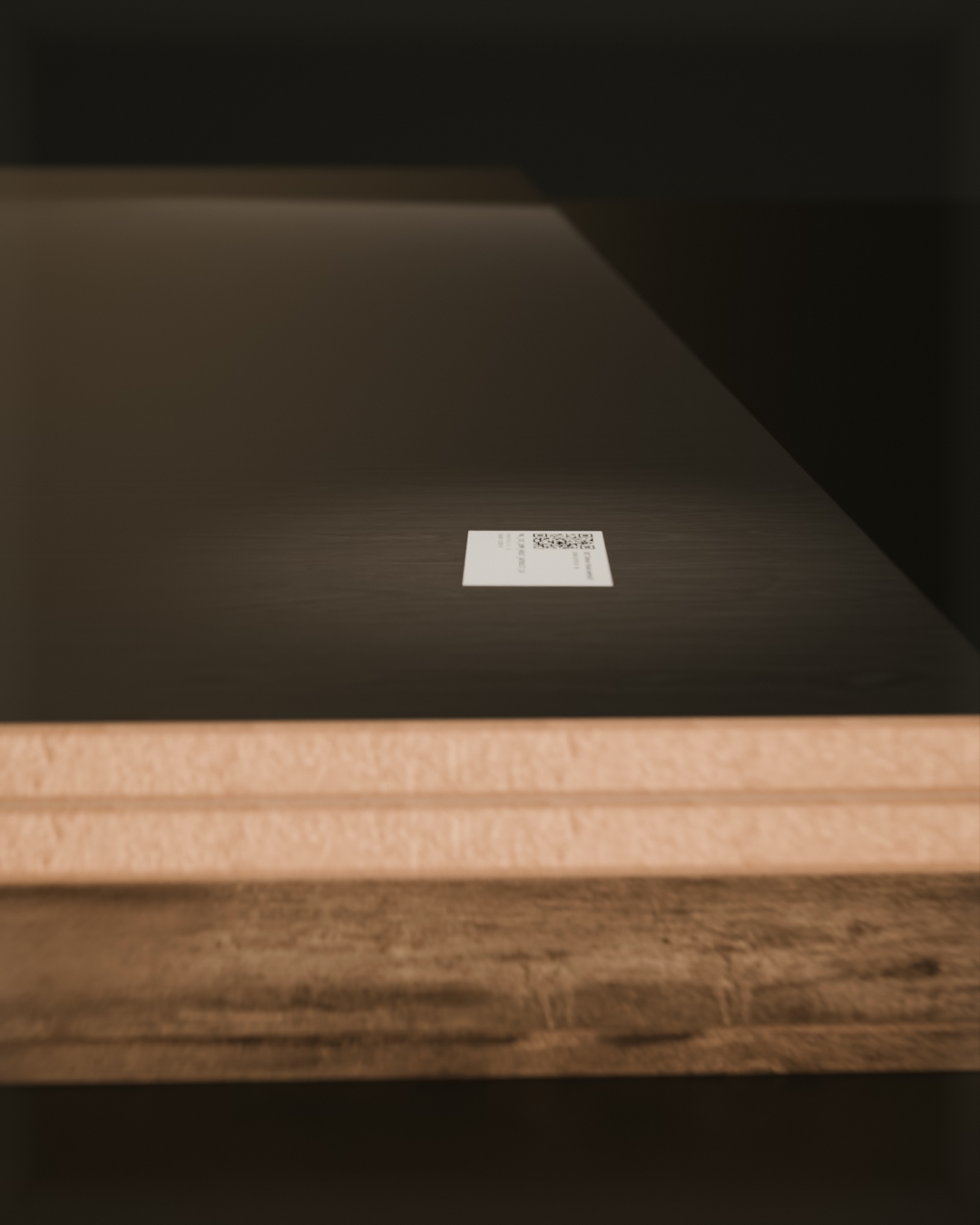


Import from your program
The agent reads an export from any program for 3D or 2D drawing and imports it into the work order, so there is no need to retype it. Example: an export from Cabinet Vision (out.csv).
Cabinet Vision: packages and pricesFor custom furniture makers
From order to installation in one conversation.
The agent prepares every step of a project, you confirm it. Tell us if you are interested.
The demonstration below is a simulation: the replies are prepared in advance, it is not a live conversation with artificial intelligence (AI).
Phase names and roles follow the real course of the work. Under each phase it says what it covers.
The step names and roles follow the real workflow; the system derives the state of every step from the data, it is never clicked.
Often like this
Windows. Spreadsheets. Notes. Calls.
Every task in its own tool.
With one conversation
One conversation.
Every task has its own window, its own spreadsheet and its own call. Totus Agent gathers them into one conversation.
I measured the room. Prepare the kitchen.
Everything is in one place. Tell me how you work.
Made to measure
Five short questions, all optional. The presentation adapts to your work.
Question 1 of 5
You can choose several answers.
Example
Your workshop
kitchen maker
Your logo
The Novak family
is ordering a custom kitchen
Fictional example: the name, company and data are a simulation.
The customer orders
The Novak family on your workshop’s website: from photos of the room to a placed order.


Sample photos
Place an A4 sheet on the floor or measure one distance so the agent has a scale.
Four photos, one per wall.
Simulation with sample data.
Try it yourself
Say what should change. The kitchen and the parts list change together.
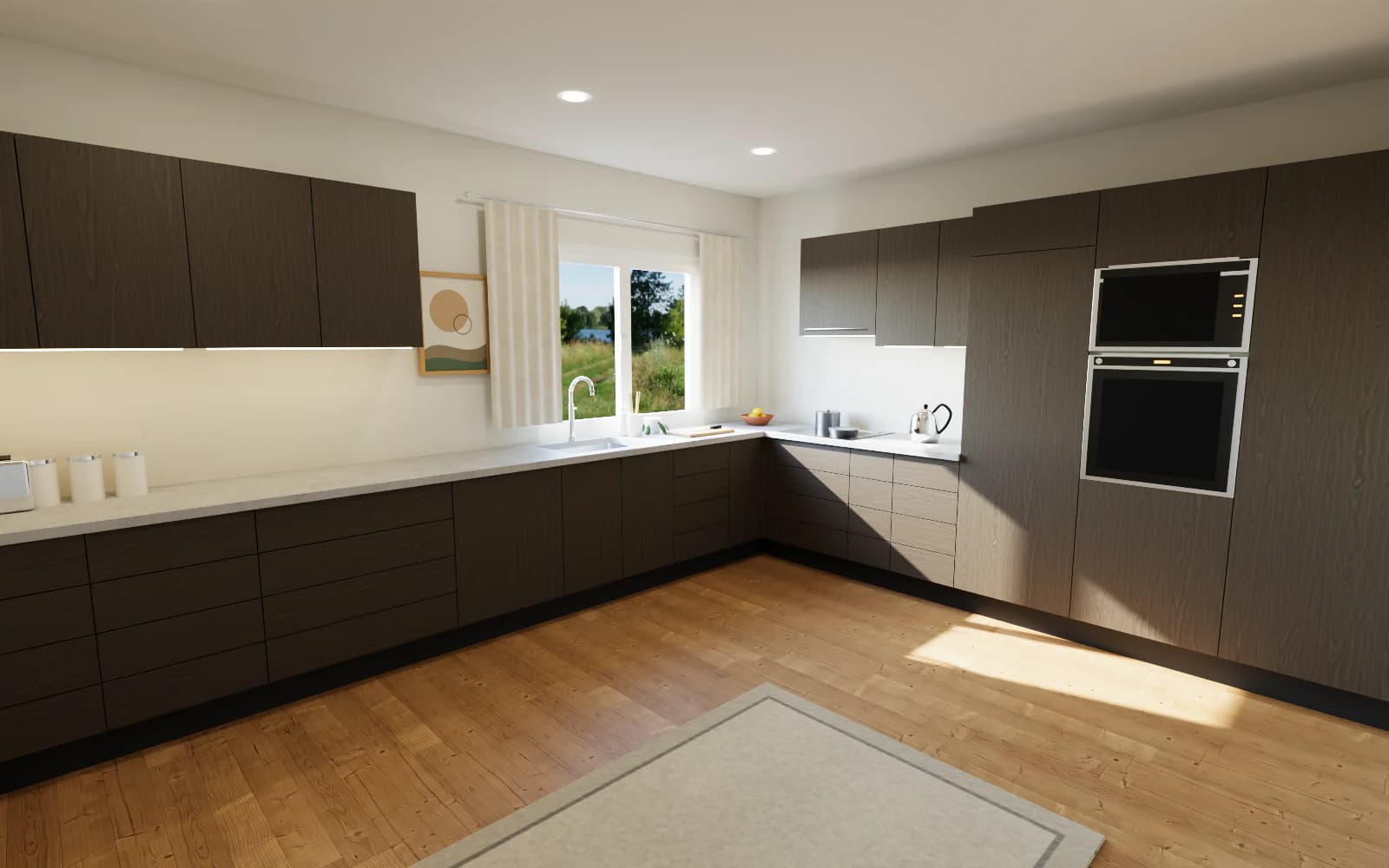
View: Photorealistic.
The kitchen tells the process
View: Photorealistic.
Entry
Choose one or all. From here on everything is the same.
You can choose more than one way.
We set up the connections with programs and websites together with you.
Simplicity
You do not open a program, look for where to click or repeat the clicks. You talk to Totus Agent or tap what is on the screen: from measuring the room to the handover of the kitchen, the agent prepares and you confirm with one tap.
Skip to It adapts to your workPhase 1 of 9 · Measuring
You: I measured the space on site.
Totus Agent: I am comparing with the customer’s measurement. One value differs; the measured one is used. The diagonal matches. The measurement is ready for production.
Room measurements Measurements checked · diagonal 5 967 mm · grade: for production
Confirm the measurement
Done. The measurement is saved in the project. Measurement grade: for production.
A hand with a laser measurer measures the wall of the empty kitchen; the red dot lands on the opposite wall.
Phase 2 of 9 · Design
You: Prepare new variants with the measured values.
Totus Agent: I prepared three variants from the layout rules and the measured values. I recommend More storage.
Layout variants Balanced · More storage · More openness
Confirm the variant
Done. The More storage variant is selected.
The live 3D room shows three layout variants; the camera travels through the room.
Phase 2 of 9 · Design
Totus Agent: Move the units or change the dimensions. I check the rules as you go. The installer checks the water and drain connections on site.
Layout Sink 20 cm left · drawer unit 700 mm
Confirm the layout
Done. The layout is saved. The bill of materials is updated.
The sink moves 20 cm to the left, the neighbouring units adjust.
Phase 3 of 9 · Quote and order
You: Prepare the quote.
Totus Agent: The quote with drawings is ready. The customer has confirmed the drawings and the quote.
Quote Drawings: floor plan and walls · materials 3
Confirm the order
Done. The order is confirmed.
A hand lays printed drawings on the workbench next to decor samples.
Phase 4 of 9 · Production preparation
You: Prepare the work order and the cutting plan.
Totus Agent: The work order is ready. The material and the cutting plan are calculated.
Work order WTP-2026-A7K2MQ Sheets 12 · yield 83 %
Confirm the cutting plan and the needs
Done. The cutting plan and the needs are confirmed.
A printed cutting layout lies on the workbench next to a stack of boards.
Phase 5 of 9 · Purchasing
You: What is missing for this order?
Totus Agent: Material is missing for this order. The order to the supplier is drafted.
Purchasing The order is prepared
Confirm purchasing
Done. Purchasing is confirmed.
A hand with a ballpoint pen marks the lines on a delivery note next to a pallet of boards.
Phase 5 of 9 · Purchasing
Totus Agent: The material has arrived. I match the delivery note and the codes on the pallets with the order.
Receiving material Materials 3 · sheets 12
Confirm receipt
Done. The material is received against the order. Stock is updated.
A scanner scans the code on the label of the pallet of sheets.
Phase 6 of 9 · Labels and release
Totus Agent: Every part gets its own QR code. The same code is valid until installation.
Labels Labels 233 · 58 × 40 mm
Confirm the labels
Done. The codes are assigned. The labels are ready to print.
Printed labels wait in the tray next to the saw.
Phase 6 of 9 · Labels and release
You: Release the order to production.
Totus Agent: The conditions are met. You can release the order.
Order release All conditions are met
Confirm and release
Done. The order is released to production.
Hands lay the work order next to the labels in the tray at the saw; the light turns green.
Phase 7 of 9 · Production
Totus Agent: Cutting runs by the plan. The parts are cut in order.
Cutting Sheets 12 · cuts 497
Confirm the start of cutting
Done. The cutting plan is at the saw; the first printed part confirms the start.
A panel saw cuts an oak drawer front out of a large sheet; a label is printed at the saw and stuck on the cut part.
Phase 7 of 9 · Production
Totus Agent: The operator scans the part; the agent shows which edges get tape.
Edge banding Edge bands 3
Confirm edge banding
Done. Edge banding is recorded on the parts.
The edge bander applies edge band to the long edge of a panel, then the end-trimming saws trim it.
Phase 7 of 9 · Production
Totus Agent: The operator scans the part; the station receives its job.
CNC and drilling Parts 233
Confirm machining
Done. The job for the station is ready.
A drilling block drills a row of holes into a cabinet side.
Phase 8 of 9 · Sorting and packing
Totus Agent: The parts are sorted by cabinet and packed. The packages are loaded in installation order.
Sorting and packing Cabinets 21 · parts 233
Confirm sorting
Done. The assemblies are ready for assembly. Loaded in installation order.
The cut, edged and drilled parts are sorted by cabinet; a hand wraps the first bundle in film and sticks on the package label.
Phase 9 of 9 · Installation and completion
Totus Agent: Part recognised: the bottom of cabinet #2. Place it on the table, watch the frame.
Assembly Cabinet #2 · step {i} of 8
Confirm the step
Done. The carcass of cabinet #2 is assembled. The drawers follow.
The phone camera recognises the part by its QR code, marks it and shows where it goes; the carcass is assembled step by step.
Phase 9 of 9 · Installation and completion
You: What is next at the customer’s?
Totus Agent: The packages are on the vehicle in installation order. Visit 1: base units and worktop. The crew and the vehicle are reserved.
Installation at the customer’s Visit 1 · base units and worktop
Confirm the visit
Done. The visit is recorded as done.
The base units and the worktop are installed in the customer’s room.
Phase 9 of 9 · Installation and completion
Totus Agent: The kitchen is finished. Confirm the handover.
Kitchen handover Three checks
I confirm the handover
Done. The handover is recorded. All phases are complete.
The kitchen is finished and in use: morning light, a cup on the worktop, a phone with the handover screen.
Simulation · the conversation is prepared in advance, it is not live AI.
Scroll: the conversation and the real process run together.
Measuring, design, order, preparation, purchasing, labels, production, sorting and installation: at every phase the agent prepares and you confirm.
I am interestedMade to fit
Use only the phases you need. For each one you choose: our tool or the program you already have. The agent connects everything.
Choose the tool for each phase. The route is drawn as you go.
Tool in Totus Agent: 9Your program: 0Skipped: 0
You enter the measurements guided; the agent tells you what else to measure.
You design in the 3D configurator; the agent prepares variants, you refine them.
The quote with drawings is made in the conversation, you confirm it.
Totus Agent calculates the work order, the material and the cutting.
The agent compiles the purchase list and the order text; you send the order yourself.
Labels with a QR code and the release of the order in the conversation.
Cutting, edge banding and CNC with part-by-part tracking.
Parts are sorted by cabinet and packed.
Visits, crew, assembly with the camera and handover.
A 3D configurator on your website: your logo, your colours, your domain. Orders arrive in the conversation.
Totus Agent asks you a few questions and sets itself up for your production.
Totus Agent connects to the machines you already have. You do not need to buy new ones, the brand does not matter.
Machine photos: FELDER Group
Simulation · not live AI
You see where work flows and where it waits. The agent notices a bottleneck and makes a suggestion; you decide.
Simulation · the data is invented.
For those who want every detail
Why Totus Agent
You enter the data once, and every following step inherits it.
The agent checks sizes, quantities and material codes before anything goes into production.
A quote with drawings of the room (plan and elevations), not just a list of lines; the 3D view is in the configurator.
The agent prepares, you approve; nothing is written without your approval.
Agent
Your program and your machines, whatever the brand — or our 3D configurator, if you do not have a program yet.
Let it play, or confirm it yourself.
The whole conversation as text: for each approval the agent’s verb, its introduction, the result and the call receipt. The card texts are the agent’s prepared texts; the data is sample data (a demo project). A simulation, not a live conversation with AI.
AGENT: I have the file. Check the preparation details.
Result: The preparation is running — the draft is usually ready in about a minute. I refresh the steps myself (for a few minutes) and will tell you when the draft is ready or if the preparation fails.
upload_preparation_source → source uploaded to the preparation · start_preparation → preparation accepted (draft in progress)
AGENT: The preparation draft is ready. Check the contents, warnings and pieces (all pieces are in the CSV download), then confirm that the draft is reviewed.
Result: The draft is marked as reviewed. The next step is confirming the exact version.
review_preparation → draft marked as reviewed
AGENT: The draft is reviewed and has no corrections. I will save it as the exact version and confirm exactly that one — check the details.
Result: Version no. 1 is confirmed. I can now hand it off to the work order.
save_preparation_revision → version no. 1 saved (no corrections) · confirm_preparation_revision → version no. 1 confirmed
AGENT: The preparation version is reviewed and confirmed. I will create the work order from it — check the details.
Result: Work order CV-DEMO-KUHINJA-HRAST-ANTRACIT is created from the confirmed preparation version (233 pieces) and linked to this project.
import_preparation → work order CV-DEMO-KUHINJA-HRAST-ANTRACIT created from the confirmed version
AGENT: I will link the work order to the order and the project and build the bill of materials from the pieces.
AGENT: The work order has material codes that are not in the catalogue (2): BND_ABS_2X23MM_HRAST_ANTRACIT_2, BND_ABS_1X23MM_PRODNATO_SIVA_1. Shall I add them to the catalogue and build the bill of materials?
Result: The bill of materials of work order CV-DEMO-KUHINJA-HRAST-ANTRACIT is built: 6 materials, 3 with a shortage.
bom_from_work_order(CV-DEMO-KUHINJA-HRAST-ANTRACIT) → bill of materials built · materials: 6
AGENT: Needs of work order CV-DEMO-KUHINJA-HRAST-ANTRACIT: I suggest the system estimate. If you have a cutting result, correct the number of sheets.
Result: The needs of work order CV-DEMO-KUHINJA-HRAST-ANTRACIT are confirmed.
material_proposal → needs proposal prepared · material_approve → proposal approved
AGENT: I will prepare a purchase list from the shortage.
Result: Purchase list no. 3 is prepared (3 rows).
create_purchase_list → purchase list no. 3
AGENT: I prepare the purchase order from the latest purchase list (no. 3, lines: 3). Choose the supplier — the order takes their lines and the lines without a supplier.
Result: Purchase order no. 18 for supplier Demo supplier is prepared as a draft (lines: 3). Nothing has been sent to the supplier yet.
create_supplier → supplier Demo supplier created · create_purchase_order → purchase order no. 18 (draft)
AGENT: I mark the purchase order as sent. The system itself sends NOTHING to the supplier — after you confirm, I give you the order to send.
Result: Purchase order no. 18 for supplier Demo supplier is marked as sent. Below are the two files to send to the supplier.
send_purchase_order → purchase order no. 18 → sent
AGENT: Purchase order no. 18 (Demo supplier): 3 open lines. I suggest the quantities not yet received — correct them to what actually arrived.
Result: Purchase order no. 18 is fully received (lines: 3). Stock has been increased.
receive_purchase_order → purchase order no. 18: 3 lines received
AGENT: I will assign label codes to pieces without a code.
Result: 233 new codes are assigned; labelled pieces in total: 233.
assign_labels → new label codes: 233
AGENT: The work order is ready to be confirmed.
Result: Work order CV-DEMO-KUHINJA-HRAST-ANTRACIT is confirmed.
work_order_status(CV-DEMO-KUHINJA-HRAST-ANTRACIT) → confirmed
AGENT: I will release the work order to production.
Result: Work order CV-DEMO-KUHINJA-HRAST-ANTRACIT is released to production.
work_order_status(CV-DEMO-KUHINJA-HRAST-ANTRACIT) → released
AGENT: I hand work order CV-DEMO-KUHINJA-HRAST-ANTRACIT (233 pieces) over to production for tracking by phase. The pieces reference no CNC programs, so no files are needed.
Result: Work order CV-DEMO-KUHINJA-HRAST-ANTRACIT is handed over to production (233 pieces) and the handover evidence is recorded — the “Handover to production and CNC” step is complete.
import(CV-DEMO-KUHINJA-HRAST-ANTRACIT) → Production project no. 41 · pieces: 233 · mes_export → handover evidence recorded
AGENT: I will move the work order into production.
Result: Production of work order CV-DEMO-KUHINJA-HRAST-ANTRACIT has started.
work_order_status(CV-DEMO-KUHINJA-HRAST-ANTRACIT) → scheduled · work_order_status(CV-DEMO-KUHINJA-HRAST-ANTRACIT) → in production
AGENT: All pieces are completed — I will complete the work order.
Result: Work order CV-DEMO-KUHINJA-HRAST-ANTRACIT is completed.
work_order_status(CV-DEMO-KUHINJA-HRAST-ANTRACIT) → completed
AGENT: From the room, the 3D configurator prepares three layout variants, each with an explanation. Choose the one we continue with.
Result: More storage
AGENT: The 3D configurator sends the project’s bill of materials to the work order: parts, materials and edges go as a canonical import that the system checks before writing anything.
Result: Work order WTP-2026-A7K2MQ created/updated.
AGENT: I will link the work order to the order and the project and build the bill of materials from the pieces.
Result: The bill of materials of work order WTP-2026-A7K2MQ is built: 6 materials, 3 with a shortage.
bom_from_work_order(WTP-2026-A7K2MQ) → bill of materials built · materials: 6
AGENT: Needs of work order WTP-2026-A7K2MQ: I suggest the system estimate. If you have a cutting result, correct the number of sheets.
Result: The needs of work order WTP-2026-A7K2MQ are confirmed.
material_proposal → needs proposal prepared · material_approve → proposal approved
AGENT: I will prepare a purchase list from the shortage.
Result: Purchase list no. 3 is prepared (3 rows).
create_purchase_list → purchase list no. 3
AGENT: I prepare the purchase order from the latest purchase list (no. 3, lines: 3). Choose the supplier — the order takes their lines and the lines without a supplier.
Result: Purchase order no. 18 for supplier Demo supplier is prepared as a draft (lines: 3). Nothing has been sent to the supplier yet.
create_supplier → supplier Demo supplier created · create_purchase_order → purchase order no. 18 (draft)
AGENT: I mark the purchase order as sent. The system itself sends NOTHING to the supplier — after you confirm, I give you the order to send.
Result: Purchase order no. 18 for supplier Demo supplier is marked as sent. Below are the two files to send to the supplier.
send_purchase_order → purchase order no. 18 → sent
AGENT: Purchase order no. 18 (Demo supplier): 3 open lines. I suggest the quantities not yet received — correct them to what actually arrived.
Result: Purchase order no. 18 is fully received (lines: 3). Stock has been increased.
receive_purchase_order → purchase order no. 18: 3 lines received
AGENT: I will assign label codes to pieces without a code.
Result: 233 new codes are assigned; labelled pieces in total: 233.
assign_labels → new label codes: 233
AGENT: The work order is ready to be confirmed.
Result: Work order WTP-2026-A7K2MQ is confirmed.
work_order_status(WTP-2026-A7K2MQ) → confirmed
AGENT: I will release the work order to production.
Result: Work order WTP-2026-A7K2MQ is released to production.
work_order_status(WTP-2026-A7K2MQ) → released
AGENT: I hand work order WTP-2026-A7K2MQ (233 pieces) over to production for tracking by phase. The pieces reference no CNC programs, so no files are needed.
Result: Work order WTP-2026-A7K2MQ is handed over to production (233 pieces) and the handover evidence is recorded — the “Handover to production and CNC” step is complete.
import(WTP-2026-A7K2MQ) → Production project no. 41 · pieces: 233 · mes_export → handover evidence recorded
AGENT: I will move the work order into production.
Result: Production of work order WTP-2026-A7K2MQ has started.
work_order_status(WTP-2026-A7K2MQ) → scheduled · work_order_status(WTP-2026-A7K2MQ) → in production
AGENT: All pieces are completed — I will complete the work order.
Result: Work order WTP-2026-A7K2MQ is completed.
work_order_status(WTP-2026-A7K2MQ) → completed
The demonstration is shortened and is a simulation.
At every point on the path the agent prepares the work and waits for your confirmation.
Where the agent does not cover the work, the “Open the step screen” link takes you to the details of that step.
The agent gradually learns your usual choices and asks you less and less.
The agent runs production on its own and reports exceptions to you.
From the Totus team
Totus Agent grows out of our experience with the hundreds of workshops we equip, so it solves real problems:
One flow
No retyping and no lost papers: the inquiry, project, quote, work order, cutting and tracking are one story in five phases. Choose a phase to see what happens in it and who does what.
What it does
From the inquiry to the project result: the tasks the agent prepares and you confirm.
Project path
The stages follow the path of a project. The agent leads them and, at each one, prepares the work and waits for your approval.
The agent guides every stage
The whole project in one conversation: from the quote and order to purchasing and production. The agent prepares, you confirm.
AI and professional rules
Dimensions, clearances and prices are calculated by the verified core of the system. The AI understands wishes and explains proposals. A person always has the last word.
Customer wishes
Text, style and budget, together with the measurements of the room.
AI proposals
Several layout variants for exactly this room, calculated by professional rules, each with a short explanation.
Rule check
Ergonomics, clearances, services and safety. Anything unsuitable is fixed or rejected.
A valid 3D project
With a price and a bill of materials, ready for refinement and a quote.
If a proposal fails the check, it goes back for correction.
The knowledge base covers kitchens and other rooms.
Connections
Totus Agent connects with the program and the machine you already have.
The agent reads an export from any program for 3D or 2D drawing and imports it into the work order, so there is no need to retype it. Example: an export from Cabinet Vision (out.csv).
Cabinet Vision: packages and pricesAny machine, regardless of brand. For projects from our 3D configurator, CNC exports for Felder and Format4 machines (TCN, F4G) and for other CNC machining centres; for cutting, a CSV cut list and DXF cutting layouts. We check the format for your machine together with you during onboarding.
CNC machining centresQuestions
Look through the presentation on this page and join the list with the “I am interested” form: leave your details and, if you like, answers to a few short questions. We will get in touch.
The agent is a conversational assistant that guides a project from order to installation. It prepares the work and you confirm every step; nothing is written without your approval. The demonstration on this page is a simulation with prepared texts, not a live conversation with artificial intelligence (AI). Autonomy grows gradually, under your control, and a person always has the last word.
No. Dimensions, clearances and prices are calculated by the verified core of the system from your price list and the project. The AI understands wishes and explains proposals; every proposal goes through a professional rule check before it is shown.
Totus Agent is designed to work with any program for 3D or 2D drawing (Cabinet Vision and others) and with any machine, regardless of brand. We check the format for your machine together with you during onboarding. If you do not have a program yet, prepare the project in our 3D configurator.
We do not publish a price.
We add you to the list. When we have news about Totus Agent we get in touch; until then we send you nothing.
I am interested
Join the list. Leave your details and, if you like, answers to a few short questions; we will get in touch.
What we store
Prefer to call? Elvis Bassanese · +386 41 636 207
You prepare the project in our 3D configurator; the agent then leads it on to cutting and scanning the parts.
The inquiry arrives complete.
Each role sees its own part of the same flow, and the data is the same everywhere.
The feedback loop
Real production data flows back into prices, lead times and norms, so every next quote is more accurate.